
How to Reduce Lag and Boost FPS on Your Smartphone
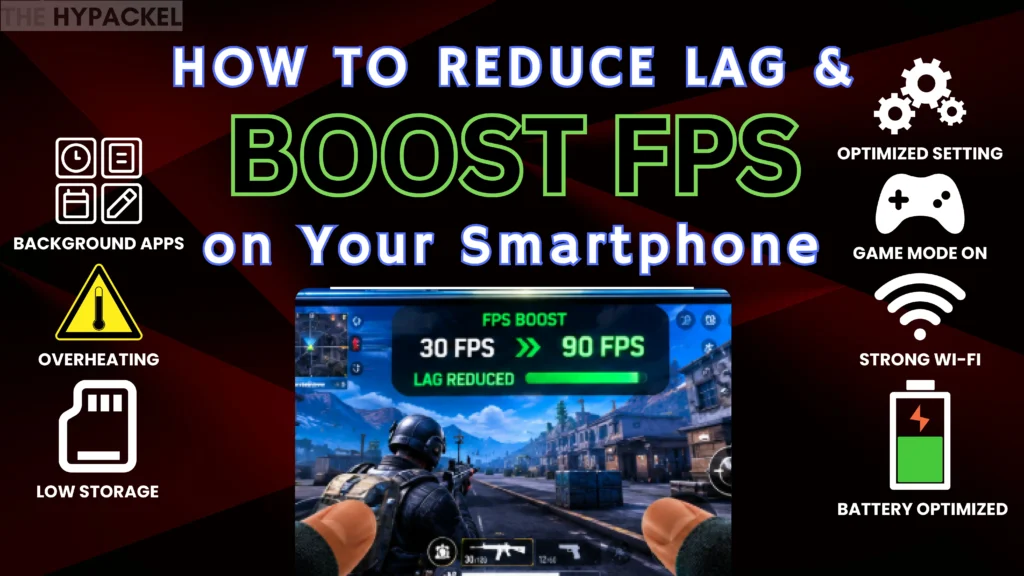
One kill away from winning. Then the screen freezes for half a second. Or worse, your character reacts a full beat after you already tapped the button. If that’s happened more than once, you already know how much lag can wreck a good gaming session.
Most people’s first instinct is to blame the phone and shop for a new one. But that’s rarely the real fix. Often the problem is something boring: a background app hogging RAM, storage that’s almost full, a processor running hot, or game settings nobody bothered to adjust. Sort those out and even a two-year-old mid-range phone can feel a lot smoother than expected.
So let’s actually look at what’s going on when a game lags, piece by piece.
FPS, Lag, and Ping Are Not the Same Thing
People use these three words interchangeably. They shouldn’t.
FPS is frames per second, basically how many images your screen updates every second while you’re playing. Lag is the gap between doing something, tapping fire, say, and it happening on screen, and it can come from your hardware or your internet. Ping, on the other hand, is purely a network measurement: the time your data takes to reach the game’s server and come back.
Use this quick overview to understand the differences:
| Term | What It Actually Measures | What It Feels Like |
| FPS | How many frames your screen draws per second | 30 is playable, 60 feels smooth and responsive, 90 to 120 feels sharpest but only if your phone can hold it steady |
| Lag | The time it takes for your actions to appear in the game | Tapping fire and seeing it happen a beat later |
| Ping | The round-trip time for data between your phone and the game server | Under 30ms feels instant; past 100 to 200ms, you’ll notice real delay |
A phone can have perfect FPS and still feel laggy online because ping is a completely separate issue with a completely different fix. This matters most in fast-paced titles like PUBG Mobile, where a half-second delay can be the difference between winning a fight and getting caught out.
If you want the short version of why games stutter at all: low RAM, an overheated processor, background apps eating resources, nearly full storage, software nobody updated, or a weak connection. Figure out which one is actually yours before you start changing settings randomly.
First, Check If Your Phone Can Even Run the Game Properly
Sometimes this isn’t a settings issue at all; it’s a hardware wall. Every game publishes minimum and recommended specs on its store page. Minimum just means it’ll launch, probably with stutter and downgraded visuals. Recommended is what the developers actually built the experience around.
Games get heavier every year. A phone that ran everything fine two years ago can genuinely start struggling with newer releases, not because it’s broken, just because the bar keeps moving. Check the chipset, RAM, and OS version in your phone’s “About” settings and compare them to what the game requires. If you’re barely scraping the minimum, don’t chase better visuals. Chase stability instead.
Close Your Background Apps Before You Even Open the Game
Fastest fix here, and also the one people skip constantly. That app you “closed” earlier is probably still syncing photos or checking messages in the background, quietly eating the RAM and CPU your game needs.
Before you launch anything, swipe away what you’re not using, recent apps view on Android, hold-and-swipe on iPhone. Most phones also ship with a Game Mode built in that handles this automatically and mutes notifications too, so if you haven’t turned it on yet, do that now and skip the manual cleanup going forward.
Don’t Let Storage Run Down to the Wire
A nearly full phone is basically fighting itself. The system needs room to create temporary files and manage memory, and once that room disappears, everything slows down, games included. Fifteen to twenty percent free space is a decent target.
Go through your app list and get rid of what’s collecting dust. Old downloads, duplicate photos, and forgotten videos pile up fast. Clearing an app’s cache can free up temporary files without affecting your game progress. However, avoid deleting app data unless you’ve confirmed your progress is safely backed up. If photos and video are what’s eating your space, moving them to cloud storage frees up more room than you’d think.
Adjust Your In-Game Graphics Settings
This is where most people see the biggest jump. There’s a natural pull toward maxing out every slider because the game just looks better that way, but if you’re actually after fewer stutters and quicker reactions, that instinct will fight you every time.
Try dropping texture quality and shadows a notch, sometimes two. The visual hit is usually smaller than expected, while the performance gain can be huge. Same logic goes for frame rate caps; a steady 60 FPS beats an unstable 120 that keeps dipping. Higher isn’t automatically better if your hardware can’t sustain it.
Also worth killing effects that look nice but add nothing to actual gameplay: motion blur, anti-aliasing, reflections, bloom, dynamic shadows. These are some of the heaviest things your GPU renders for basically zero functional benefit, and switching them off frees up real performance you’ll notice within minutes. If you’re big on customization too, it’s worth knowing that visual tweaks like creating custom skins in PUBG Mobile won’t affect performance the way in-game graphics settings do, so you don’t have to choose between looking good and running smooth.
Keep the Phone From Overheating
Heat doesn’t get enough blame here. Once your processor gets too hot, it deliberately slows down to avoid damage, which is why a lot of games run great for the first twenty minutes and then fall apart. Warm phone, screen dimming on its own, performance tanking out of nowhere, that’s thermal throttling doing its job.
A handful of things actually help:
- Ditch the thick phone case while you’re gaming; it traps heat that needs to escape
- Skip charging while you play; that adds more heat right on top of what gaming already produces
- Play somewhere cooler if you can; direct sun and stuffy rooms make everything worse
- Take a short break every hour on long sessions so the phone gets a real chance to cool
Stop Ignoring Software Updates
It’s tempting to swipe away update prompts and get back to playing, but that habit costs more than people realize. OS updates usually improve how memory and background tasks get handled. Game updates tend to patch the exact stutter and crash issues players complain about after launch, since developers keep tuning things based on real device data. Staying current basically means grabbing free performance improvements that are already sitting there waiting.
Sort Out Your Internet Connection
If you mostly play online, your network matters just as much as the phone itself. Wi-Fi beats mobile data almost every time; use it when it’s available. Weak signal? Move closer to the router, or restart it; that alone solves more problems than people give it credit for.
To bring ping down specifically: pause background downloads or streaming, disconnect devices you’re not using, and pick the nearest server manually if the game allows it. Less distance for data to travel means a faster, steadier connection.
Use the Performance Tools Already Sitting on Your Phone
Most brands build gaming tools right into the phone these days. Samsung calls it Game Booster, ASUS runs Game Genie, Xiaomi has Game Turbo, OnePlus has its own Gaming Mode, and both OPPO and vivo include versions that prioritize performance and block interruptions mid-match. iPhones skip the dedicated mode, but Focus Mode plus manually clearing background apps gets you most of the way there.
Don’t Forget Your Power Settings
Battery Saver is built to slow the phone down and stretch battery life, which is exactly the opposite of what you want while gaming, so turn it off before you start. If there’s a Performance Mode available, flip it on. And if your phone has a high refresh rate screen, actually check it’s enabled; plenty of phones quietly default back to 60Hz to save power without telling anyone.
Restart More Than You Think You Need To
Sounds too basic to matter, but a plain restart clears out the temporary files and background clutter that pile up over days of use. Once or twice a week is plenty if you’re a casual player. If you game a lot, restarting right before a longer session genuinely helps.
Knowing When a New Phone Is Actually the Answer
Sometimes there’s a real ceiling and no setting can get past it. If your phone consistently falls below a game’s minimum requirements, or it’s years old and struggling with basically everything, that’s your sign. Upgrading gets you more RAM, a faster chip, a smoother display, better cooling, and more room to breathe, and all of that genuinely changes how gaming feels day to day. Either way, it’s worth browsing through our full hypackel games library to see which titles actually suit your current hardware before you commit to anything demanding.
Small Habits That Quietly Wreck Your Performance
A few things people do without even noticing:
- Gaming while it’s plugged in and charging
- Leaving a dozen apps sitting open in the background
- Ignoring updates for weeks or months at a time
- Playing on a weak or overcrowded connection
- Maxing out every setting purely out of habit, not necessity
None of these alone will ruin a session. Stack a few together, though, and it adds up fast.
Wrapping Up
Lag is rarely one clean problem. It’s usually several small things piling on, a warm processor, too many apps running quietly, an outdated game build, a shaky connection, all compounding together. The good part is that fixing most of it costs nothing except a few minutes.
Pick a few of these, try them out, and actually pay attention to how the phone feels before and after. Odds are you’ll notice the difference right away, and there’s a decent chance that new phone you’ve been eyeing can wait a little longer.